
How Accessibility Work Makes Your Site Easier for AI to Read

One of the tools I sometimes use as a web developer is Google Lighthouse. It is a quick way to check how fast a page loads, how it handles SEO, even how accessible it is. Recently, I noticed something new in the report: a category called Agentic Browsing.
Agentic browsing is what happens when an AI opens your website and tries to use it, the way a person would. It’s not like a search robot that quietly reads your text and files it away, but an assistant with a task: find a supplier, compare three prices, check whether this shop delivers to BGC, pull an answer for someone who asked a question in a chat window.
That shift matters more than it first sounds. For most of the web’s history, the machines visiting your site only had to read it. Now they increasingly have to understand it well enough to speak on its behalf. When someone asks an AI assistant a question, it gathers candidate pages, opens them, works out what each one says, and reports back. A page it cannot make sense of is a page it cannot recommend.
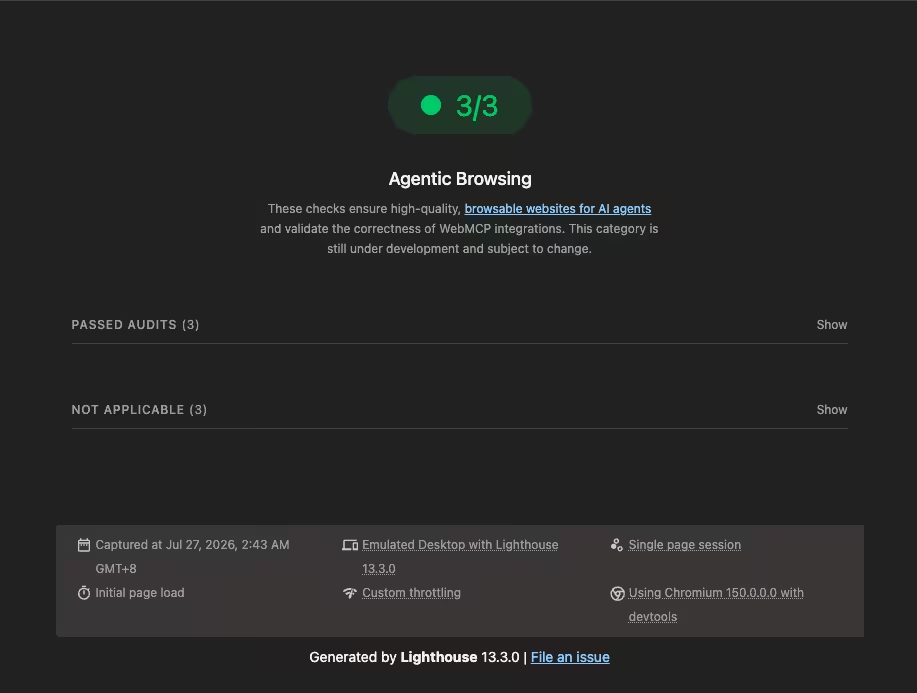
Now Lighthouse’s agentic browsing criteria are still under active development, but one of the things they look for is how well-formed the accessibility tree is.
The accessibility tree
When a browser loads your page, it quietly builds two versions of it.
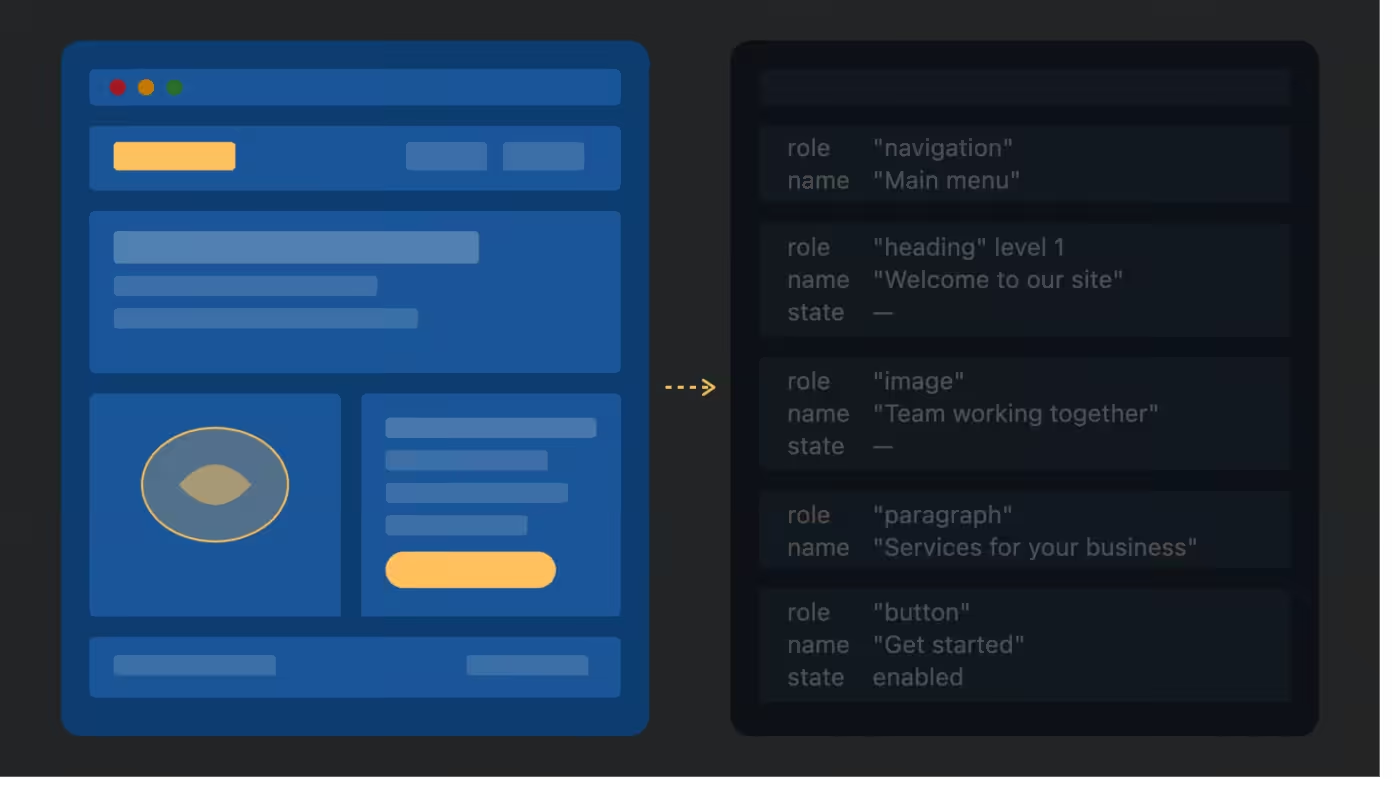
The first is the one people see: colors, images, spacing, layout. The second is a plain version called the accessibility tree. It throws away everything visual and keeps only three things about each element on the page:
- What it is. A button, a link, a heading, a checkbox, a navigation area.
- What it is called. “Add to cart”, “Search products”, “Contact us”.
- What state it is in. Checked, expanded, disabled, currently selected.
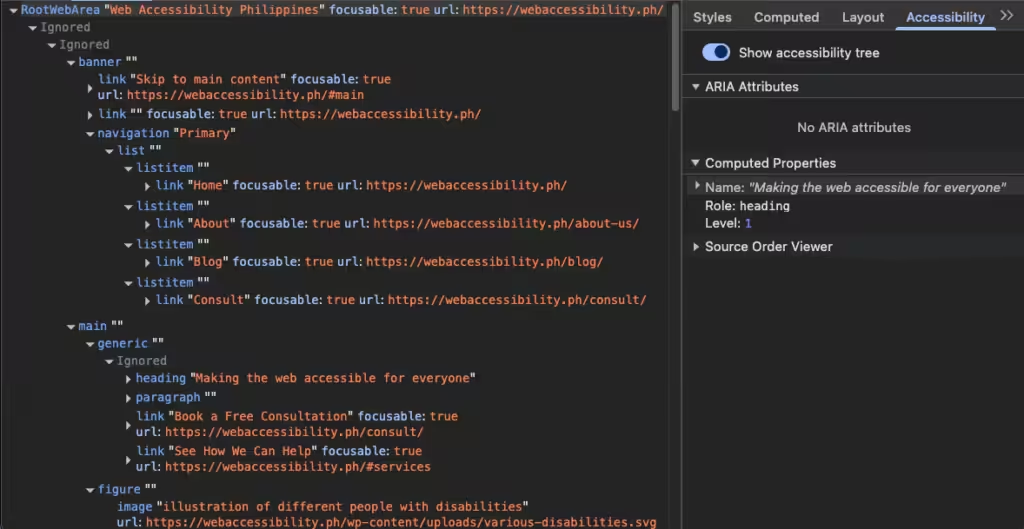
Screen readers have used this for decades. It is why a blind user can jump straight to the main content, or call up a list of every heading on a page instead of going through it top to bottom.
AI agents now read the same thing, for much the same reason. Microsoft’s browser automation tool for AI hands agents an accessibility snapshot rather than a screenshot, because a picture forces the agent to guess at what it is looking at, while the accessibility tree simply tells it. A page might contain thousands of elements in its underlying code and only forty things that actually mean something. The accessibility tree is the short version, and the short version is the one that gets understood.
Semantic HTML does the work for you
Here is the part worth internalizing: you do not build the accessibility tree. The browser builds it from your HTML. Your only job is to give it something to work with.
Use the right element and it fills itself in.
<!-- The browser records: button, named "Save draft" -->
<button type="submit">Save draft</button>

<!-- The browser records: a container with some text in it -->
<div class="btn primary" onclick="save()">Save draft</div>
To an agent, the second one is scenery. It has no role, it may not be reachable by keyboard, and nothing about it signals that clicking it does anything at all.
The same principle runs through everything you already know:
- A
<label>tied to an input field says which box holds the email address. - Real heading levels, chosen for structure and not for font size, tell an agent how your page is organized and let it find the section it needs.
- Landmarks such as
<nav>,<main>, and<footer>let it skip past the furniture and go to the content. - Alt text is the only description an image has once the pixels are gone.
You can rebuild all of this by hand with ARIA attributes and tab indexes. But you would be redoing what the browser already gives you for free, and most teams get part of it wrong.
Where the tree falls apart
If you want to know where an agent will lose the thread, look at the same list that fails an accessibility audit. Icon-only buttons with no accessible name. Placeholder text standing in for a label. Headings picked because they looked right. Dropdowns and tabs assembled from generic containers with no roles or states attached.
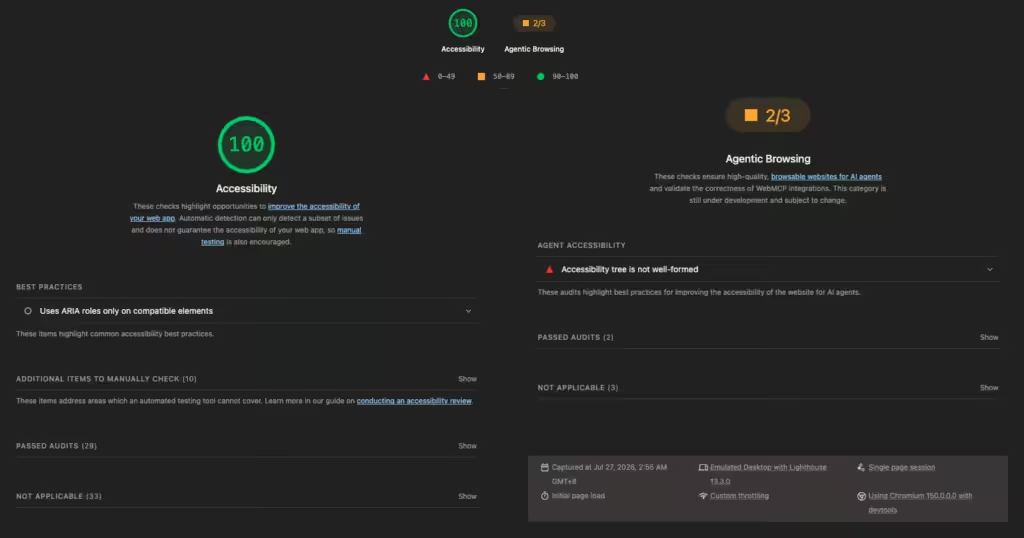
A word of warning about scores. A strong Lighthouse accessibility number does not protect you here, because the agentic checks look at a narrow set of machine-interaction rules rather than an average. You can score 100 on Lighthouse’s accessibility category and watch it fail the agent accessibility tree check outright. The cause can be a single search box carrying aria-expanded and aria-haspopup with no role="combobox" to make sense of those attributes. A human visitor would never notice. A machine reading the tree gets a contradiction and no way to resolve it.
Try it on your own site
This takes about ten minutes and costs nothing.
- Run Lighthouse and look at the Agentic Browsing section. It reports passes and failures rather than a score out of a hundred.
- Open the accessibility pane in your browser’s developer tools and look at your most important page. Ask whether you could work out what the page offers from that view alone.
- Tab through that same page with no mouse. Where you get stuck is where an agent gets stuck.
None of this is new work. It is WCAG 2.2, most of it Level A, and it has been the right thing to do since long before anything called itself an agent. What has changed is who else is now reading.